

The Companies and Contacts pages allow you to access a database curated from existing projects.
1. Companies Database
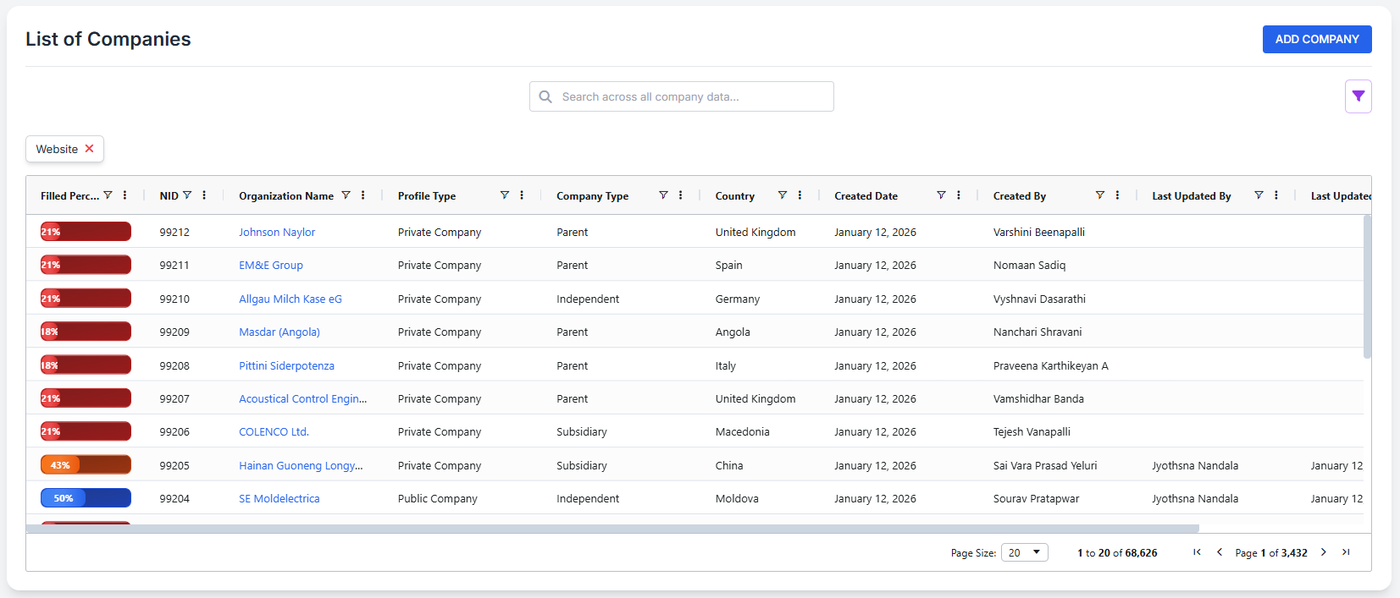
Adding a New Company: Navigate to the Manage Companies page and click the + Add Company button in the top right corner.
Required Fields: Complete the form with the following information:
(Insert field list here, e.g., Company Name, Industry, Headquarters, Website)
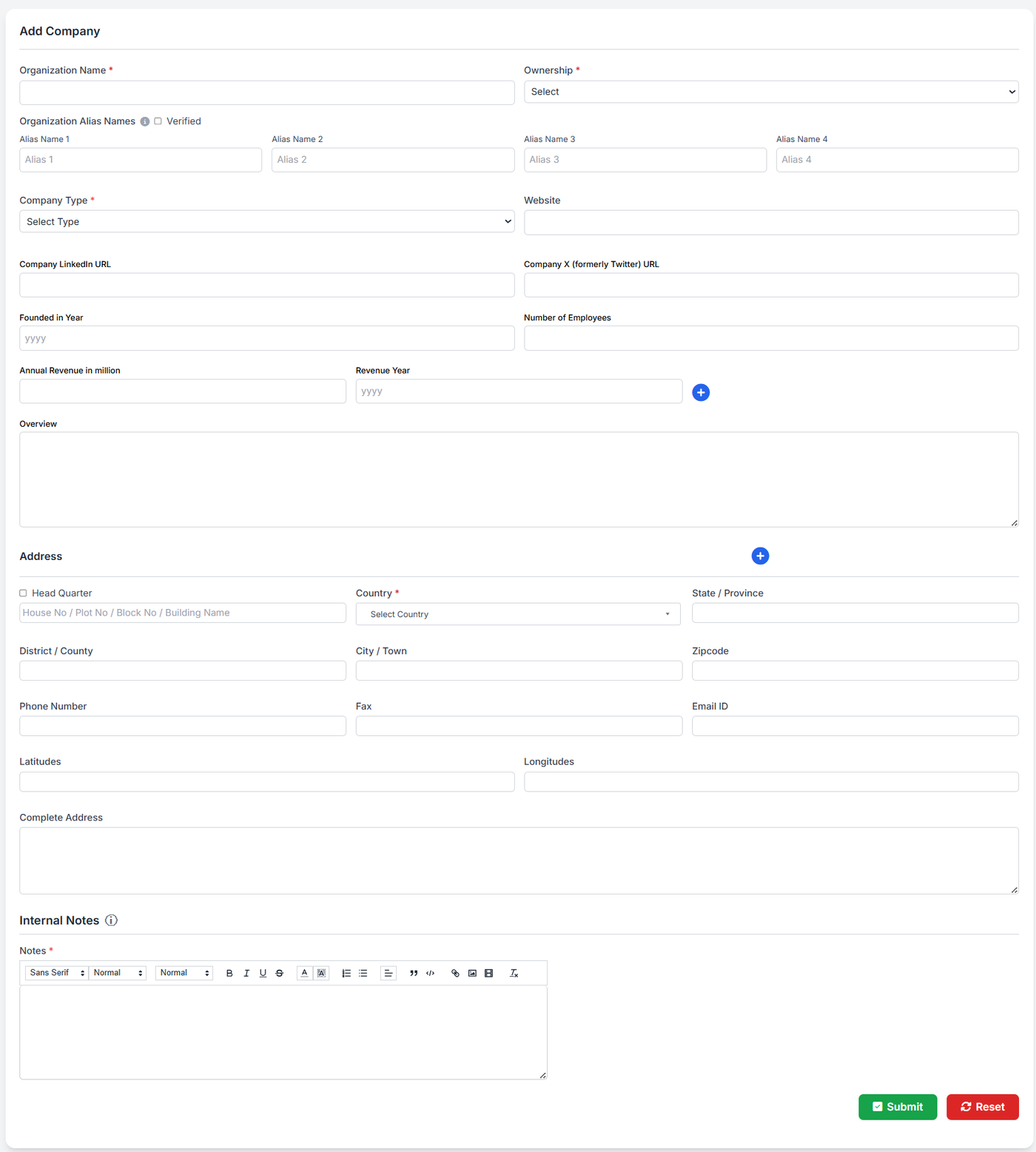
Submission: Click Submit to add the company to the database.
Project Tracking: Similar to contacts, you can check which projects a company is associated with by selecting the View Projects option.
2. Contacts Database
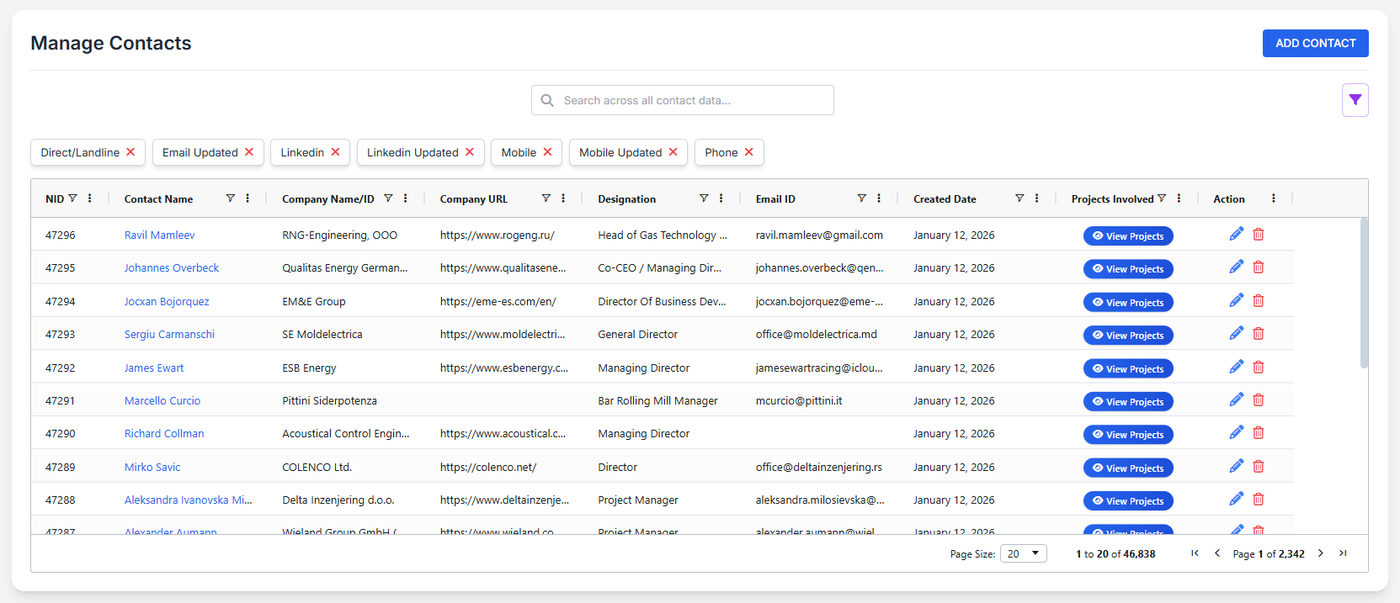
Creating a New Contact: Navigate to the Manage Contacts page and click the Add Contact button in the top right corner.
Required Fields: Fill in the following details as shown in the interface:
(Insert field list here, e.g., Name, Designation, Email, Phone Number)
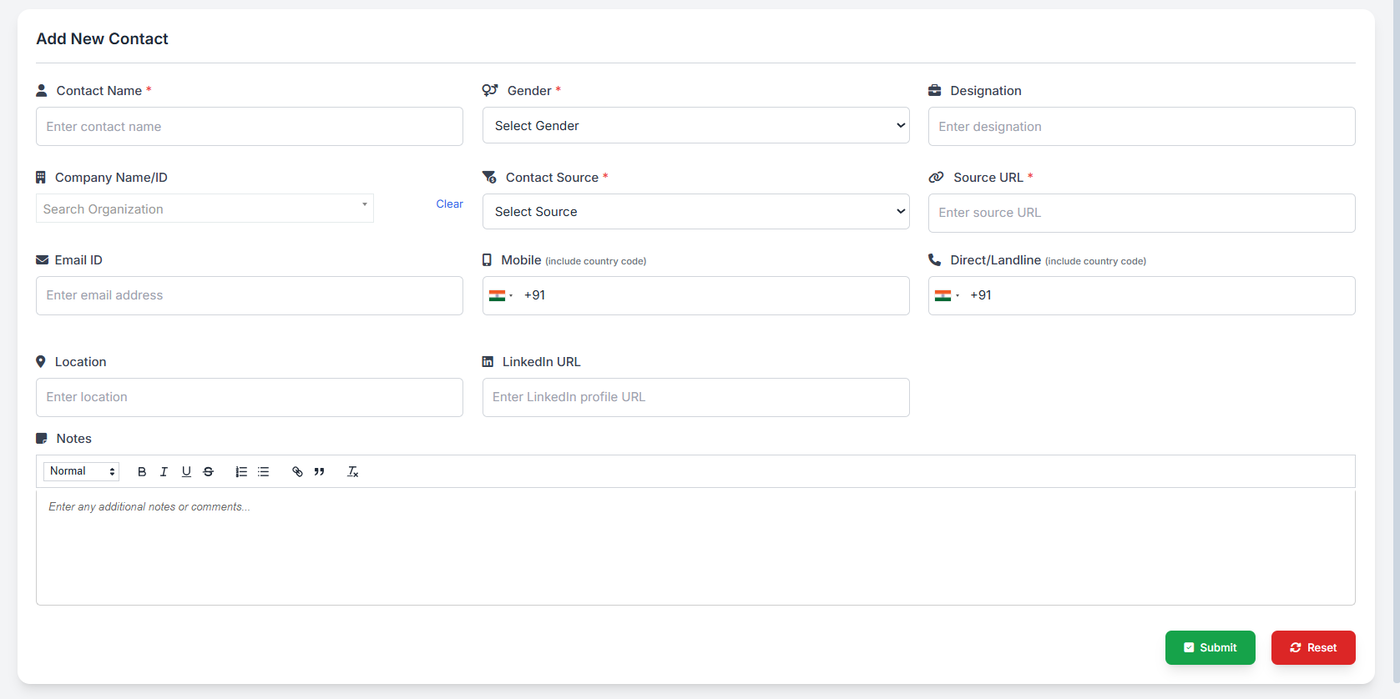
Submission: Click Submit to save the contact to the database.
Viewing Involvement: To see which projects a specific person is involved in, click the View Projects option located next to the contact’s name.
